Showing posts with label USERMANAGEMENT. Show all posts

Describe /etc/passwd file in linux system with practical examples


Describe /etc/passwd file in linux system with practical examples

In this article we learn about “/etc/passwd” file in linux system that is brief description all filed of the “/etc/passwd” file, which field stores which information. It is very important file for a system administrator to manage the user account.

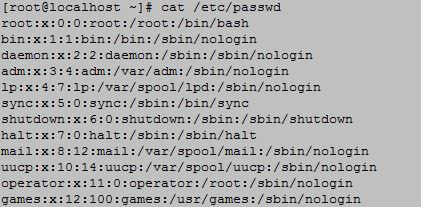
Passwd file is stored the /etc directory in the linux system. to view the “/etc/passwd” file we execute the below command.

 [root@localhost ~]# cat /etc/passwd
root:x:0:0:root:/root:/bin/bash
bin:x:1:1:bin:/bin:/sbin/nologin
daemon:x:2:2:daemon:/sbin:/sbin/nologin
adm:x:3:4:adm:/var/adm:/sbin/nologin
lp:x:4:7:lp:/var/spool/lpd:/sbin/nologin
sync:x:5:0:sync:/sbin:/bin/sync
shutdown:x:6:0:shutdown:/sbin:/sbin/shutdown
halt:x:7:0:halt:/sbin:/sbin/halt
mail:x:8:12:mail:/var/spool/mail:/sbin/nologin
uucp:x:10:14:uucp:/var/spool/uucp:/sbin/nologin
operator:x:11:0:operator:/root:/sbin/nologin
games:x:12:100:games:/usr/games:/sbin/nologin
Describe /etc/passwd file in linux system with practical examples


Explain first field of the /etc/passwd file

From the above output we saw that first filed is the username field. When we create a user the username sets in this field. When we login terminal using the username then this value compares the value which is stored in username field which is created during creation of a user.

Explain second field of the /etc/passwd file

From the above output we saw the second field is encrypted password field of the user account. Normally the encrypted password uses the DES algorithm to secure the password of an user. To do more secure of the password of an user linux is store the user password in the other file which is called /etc/shadow.

Explain third field of the /etc/passwd file

Third field indicate the user id of an specific user. This id will be unique.user id “0” indicates the root user. system is reserved userid from 0 to 500 . when we create new user it is created with user id after 500.


Explain fourth field of the /etc/passwd file

Fourth field indicated the group id of the user. When we create an user primary group is automatically created for the user if we don’t specify the primary group of the user.this field indicates the primary group id of the user.

Explain fifth field of the /etc/passwd file

Fifth field indicated the description field of the user user. In an organization when we create some users we need to mention their details to maintain the user record. This field stores these records.

Explain sixth field of the /etc/passwd file

Sixth field indicated the home directory of the user. When we create an user home directory is automatically created for the user if we don’t specify the custom home directory. This home directory is stored in this field.

Explain seventh field of the /etc/passwd file

Seventh field indicates the shell of he user. When we create an user “/bin/bash” shell is automatically created for the user. This shell is stored in this field.


Explained User management in linux with practical examples


Please Donate To Bitcoin Address: [[address]]
Donation of [[value]] BTC Received. Thank You.
[[error]]

Describe usermod operation in linux with practical examples


Describe usermod operation in linux with practical examples

In this article we learn how to change user group , how to lock and unlock user account, how to change user shell , how to change user home directory and how to change the description of the user if need to change the comment.

After creating user if any modification is needed then we use “usermod” command.

How to change user group

When user is added then default primary group is created if there is any requirement to change we can change the primary group using usermod command and use ‘-g” switch to execute this change.

Lets take an example when we create test user by default “test” primary group is created . if we need to change the primary group  to “primary” we execute the below command.

#usermod –g primary test

Describe usermod operation in linux with practical examples


If we need to change the secondary group we use “-G “ switch to do this job.

#usermod –G  secondary test

How to lock user account

Some time we need to lock user account for the security reason. To lock an user account we use “-L” switch .

#usermod –L test

How to unlock locked user account

To unlock a locked user account we “-U” switch.After executing thee below command we unlock the locked account.

#usermod –U test

How to change the default user shell

To change the default user shell we can use “usermod “ command along with “-s” switch. By default when user is created “/bin/bash” shell is created automatically. If we want to change it to nologin shell we execute the below command.

#usermod –s nologin test

How to change home directory of user

When user is created a home directory is automatically created for that user. To change the default home directory we use “-d” switch.

#usemod –d <path name>

How to change user description

In an organization when a user retired or transferred we need to change the description of the user .To do this we use “-c” switch.
#usermod –c “updated comment” test


Please Donate To Bitcoin Address: [[address]]
Donation of [[value]] BTC Received. Thank You.
[[error]]

Explained User management in linux with practical examples


Explained User management in linux with practical examples

In this article we learn user management in linux that include how to create new user, how to set password for the new user, how to create custom home directory, how to create user without home directory, how to describe about the user, how to create custom shell for the new user, how to create custom primary group for the new user and how to set secondary group for the created new user.

Maintain user management is the most important task for an system administrator.

How to create new user in linux system 

To create a new user account we need to execute ”useradd” command to the shell. After executing this command new use account will be created with its own home directory, its own shell and automatically create its own primary group.To add the new user we execute the below command.

#useradd test <here test is the username>

After execute the above command user is created  but account will be locked. To unlock the user account we need to execute the “passwd” command. After execute the below command the use account will be unlock.


Explained User management in linux with practical examples

How to create custom home directory for new user in linux system 

When we are going to create new user its home directory is automatically created. To create the custom directory we use “-d” switch. First we need to create the the specified location in which user home directory is created   and then we use “-d” switch to create custom directory.

Suppose our specified location is “/testuser/test” .we first create “/testuser/test” directory and to set it we use the below command.

#useradd –d /testuser/test test

How to create user without home directory

To create a user without home directory we use “-M” switch. We need to execute the below command.

#useradd –M test

How to describe about the new user

When we create to a new user for an organization we need to mention the description for the new user. To do this we use “-c” switch.

#useradd –c “user description” test

How to create custom shell for the new user

When we create a new user “/bin/bash” shell is automatically created. To create the custom shell we use “-s” switch to execute it.

#useradd –s /bin/ksh

How to create custom primary group

When a user is create its primary group is automatically created. To  change it forcefully to a custom group we use “-g” switch.

#groupadd primary
#useradd –g primary test

How to add a user to a secondary group 

To belong the test user in the secondary group we use “–G” switch.

#groupadd secondary


Please Donate To Bitcoin Address: [[address]]
Donation of [[value]] BTC Received. Thank You.
[[error]]